Start11v2 Menu Customization

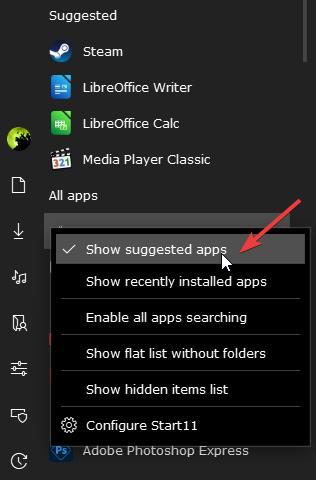
1) Is there a way to remove the "Suggested" section from the menu?

2) Is there a way to add a "Folders" section to the menu where I can add links to specific folders? Clicking an item would open Windows Explorer (or Explorer replacement in my case).

I know about pinned taskbar folders and the Shortcuts list - I'm asking about menu customization.
403 views 14 replies
Reply #1 Top

Hello,

Sorry to hear you are having issues. 

  • For removing the suggestion section, please unselect this.

  • First, Need to know which Start Menu style you're using for this one. And perhaps, specify which menu are you referring to.

Thank you,

Basj,

Stardock Community  Assistant

Reply #2 Top

Thanks, found the option for removing suggested apps.

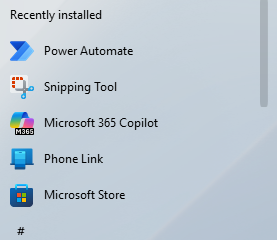
I'd like the list of folders to appear above the Recently Installed section.

Reply #3 Top

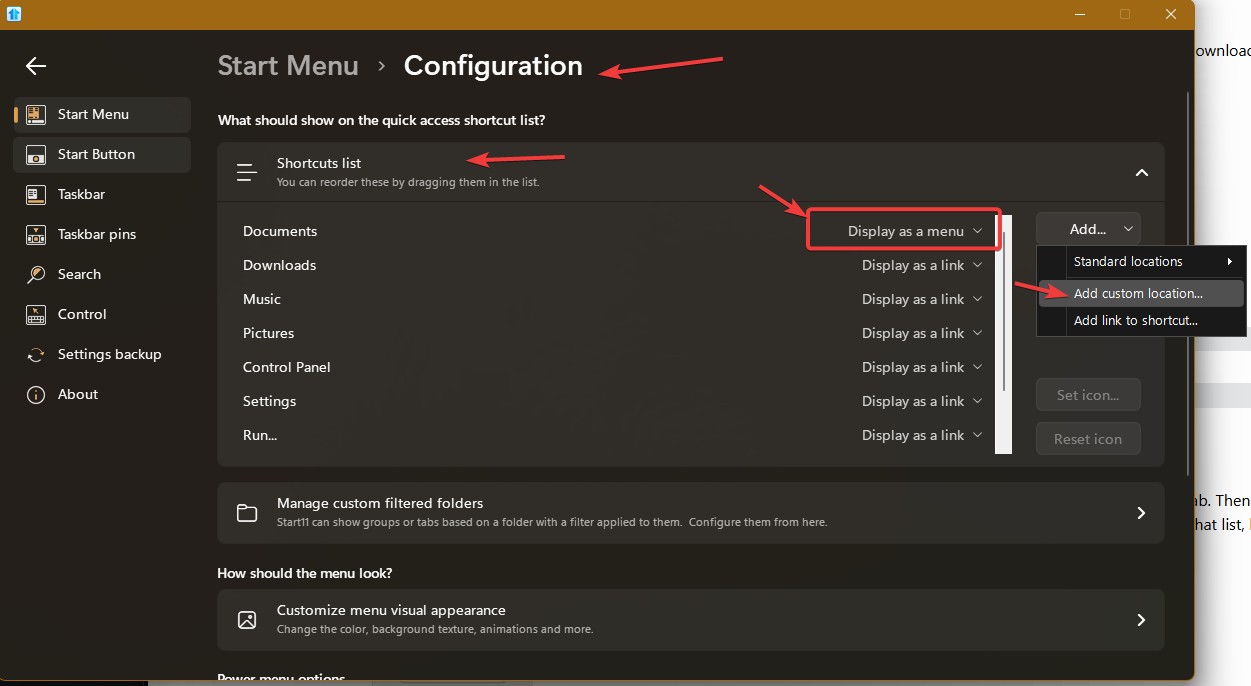
You on Windows 10 style? If that is so, from what I know, it is not possible. But, you can add a Folder on your "Shortcuts list" area and set is display as menu.

Thank you,

Basj,

Stardock Community  Assistant

Reply #4 Top

That's not great if you want to add 7-8 folders as you'd have to memorize what each icon represented.  I guess this is an enhancement request.

Reply #5 Top

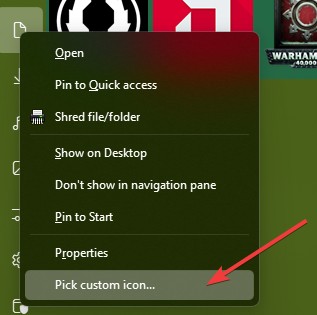
Actually, you can customize those icons.

Thank you,

Basj,

Stardock Community  Assistant

Reply #6 Top

"if you want to add 7-8 folders as you'd have to memorize what each icon represented" 

I want to avoid that mental effort needed when doing what is supposed to be a quick action.

Reply #7 Top

If you use Windows Pro Style, it comes with Quicklink/shortcuts list panel with names.

Thank you,

Basj,

Stardock Community  Assistant

Reply #9 Top

No, the tiles section is still there. Perhaps, it is a little different than Windows 10 style.

Thank you,

Basj,

Stardock Community  Assistant

Reply #11 Top

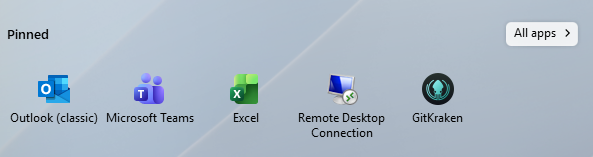
The top part might not instantly transfer to Windows Pro style, but you can re-pin into it.

Thank you,

Basj,

Stardock Community  Assistant

Reply #12 Top

I have 46 icons in 8 groups in this section of the Windows 10 style. How is that going to work?

Reply #13 Top

Do know that you can just switch your Windows 10 to Windows Pro style to see how it work, Your Windows 10 style would still be there when you change back to Windows 10 style. 

Also, you can use the backup setting option to save your layout settings.

Thank you,

Basj,

Stardock Community  Assistant

Reply #14 Top

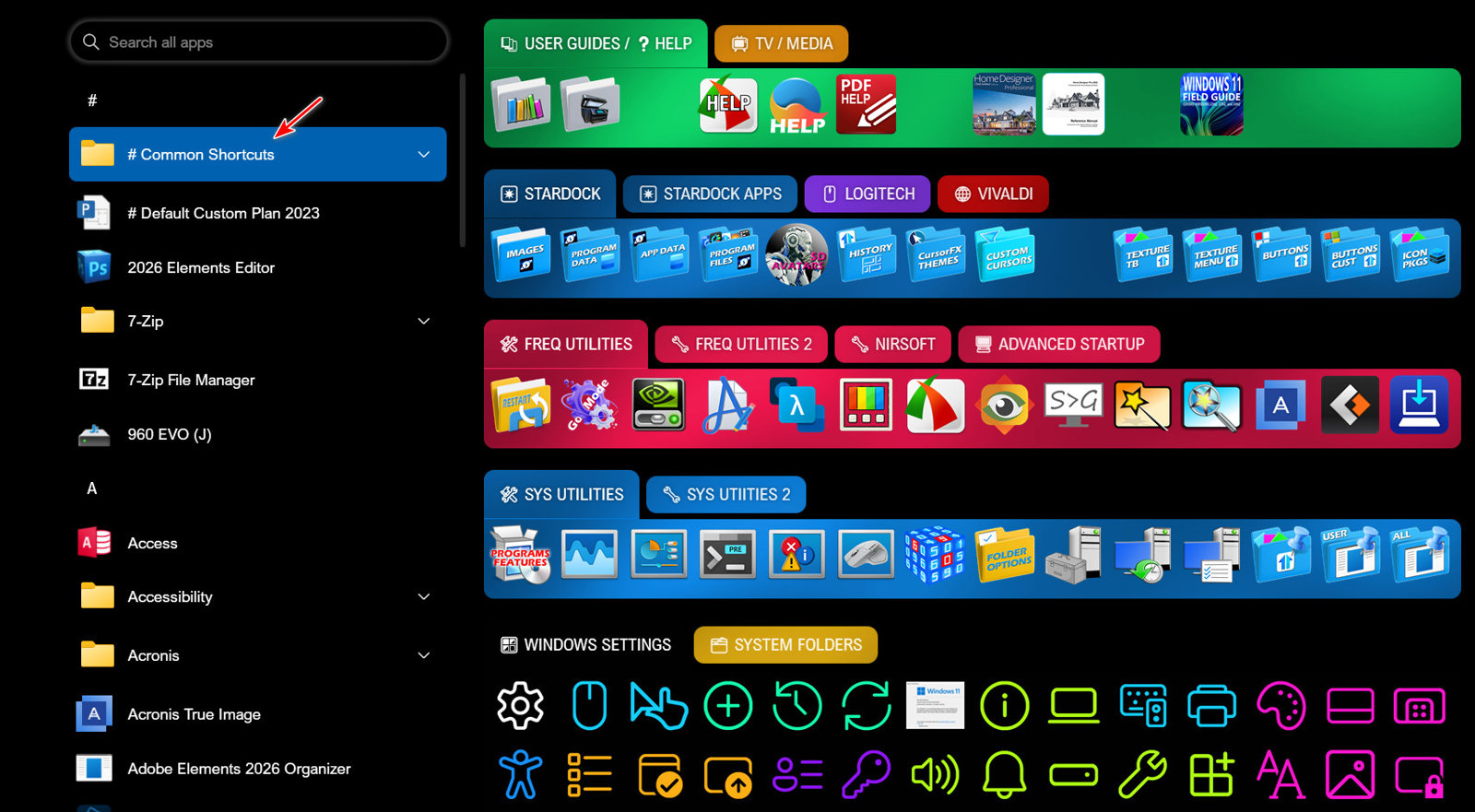
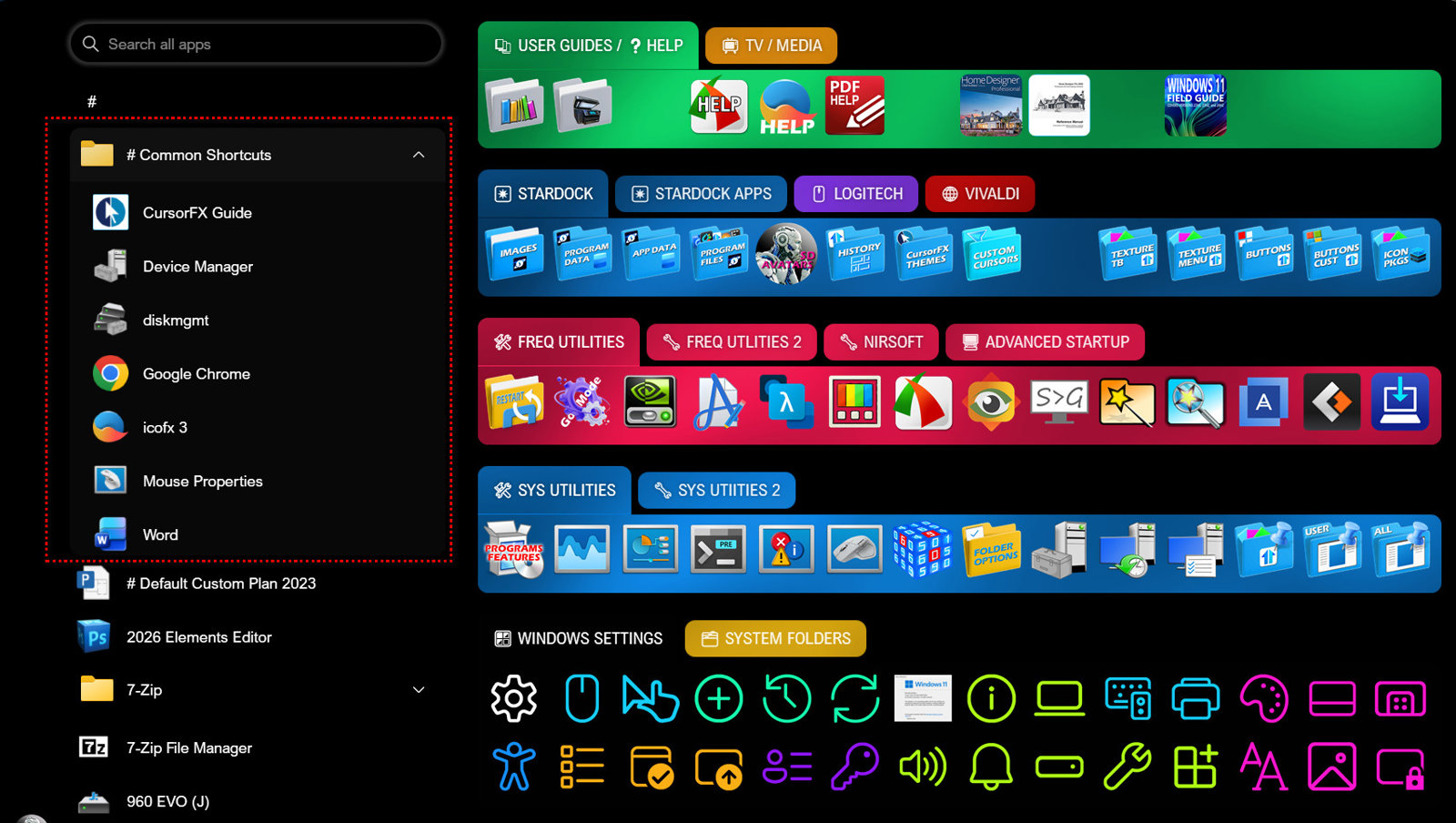
You can add a folder at the top of the All Apps section of the Windows 10 style and then place the shortcuts you want in this folder.

1) Open this location

C:\Users\YourUserName\AppData\Roaming\Microsoft\Windows\Start Menu\Programs

2) Create a New Folder and Name it using a # sign as the first character.

In this example I am using "# Common Shortcuts"

3) Place the shortcuts you want to access in this folder

NOTE: In steps 2 and 3 you may have to give permission.

4) Restart your computer